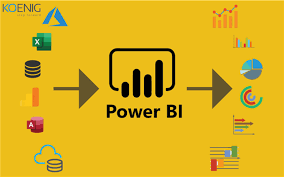
Data can be a powerful tool when it comes to making decisions and understanding trends. Microsoft’s Power BI is like a superhero for data—it helps you turn raw information into colorful, easy-to-understand reports and dashboards. If you’re just starting with Power BI, don’t worry! This guide will walk you through the basics in simple terms.
Step 1: Setting Up
First things first, let’s get the Power BI software. It’s free! Go to the Microsoft website, download Power BI Desktop, and follow the instructions to install it on your computer.
Step 2: Meet the Power BI Family
Power BI has three main parts. There’s Power BI Desktop, where you create your reports. Then, there’s Power BI Service, where you can share and work on reports together. Lastly, Power BI Mobile lets you check out your reports on your phone.
Step 3: Getting to Know Power BI
Open Power BI Desktop and take a look around. It might seem like a lot at first, but don’t worry—you’ll get the hang of it!
Step 4: Connecting to Data
Now, let’s get some data to work with. Power BI can connect to lots of different sources, like Excel or databases. Practice bringing in data and making it look nice using the Power Query Editor.
Step 5: Playing with Data
Learn about relationships between different pieces of data. Also, get familiar with DAX, a language that helps you do more advanced calculations.
Step 6: Making Things Pretty
Time to create some visuals! Drag and drop your data onto the report canvas to make cool charts and graphs. Try out different types of visuals, like bar charts or tables.
Step 7: Dressing Up Your Report
Make your report look good! Change colors, fonts, and other things to make it easy on the eyes. You can use themes to keep everything looking consistent.
Step 8: Building Dashboards
Combine your visuals into dashboards. Dashboards give you a big picture view of your data. Pin your favorite visuals to the dashboard for a quick glance.
Step 9: Sharing with Others
Once your report is ready, it’s time to share it! Sign up for a free Power BI Service account and publish your report there. Now, others can see and work on it too.
Step 10: Exploring Power BI Service
Check out Power BI Service. This is where you can collaborate with others, share your dashboards, and explore more features.
Step 11: Staying Updated
Keep learning! Follow Power BI blogs and communities to stay in the loop about new features and tips.
Step 12: Going Deeper (Optional)
If you’re feeling adventurous, dive into more advanced topics. Learn about DAX functions, Power Query M language, and the Power BI API for some extra superpowers.
Step 13: Practice with Play Data
Microsoft provides sample data for you to practice with. Use these datasets to improve your Power BI skills.
Step 14: Online Learning
Take advantage of online courses on platforms like Microsoft Learn, Udemy, and YouTube. These courses can be a great way to learn at your own pace.
Step 15: Join the Power BI Community
Connect with other Power BI enthusiasts. Join forums and social media groups to ask questions and learn from others. Remember, the key is practice. Start small, explore, and gradually take on more challenges. Power BI might seem like a superhero now, but with a little practice, you’ll be the superhero of your data world! Good luck!
#MMBA5